Renew Client Secret
This guide explains how to renew the client secret of the Microsoft App registration used by Playground, when it has expired or is about to expire. Once the secret expires, Playground can no longer reach SharePoint or the Microsoft 365 connectors.
The procedure is split in two parts:
- In Microsoft Entra: performed by an administrator of your Entra tenant (or an owner of the app registration)
- In Playground: performed by a Playground administrator
Create a new secret in Microsoft Entra
Open App registrations
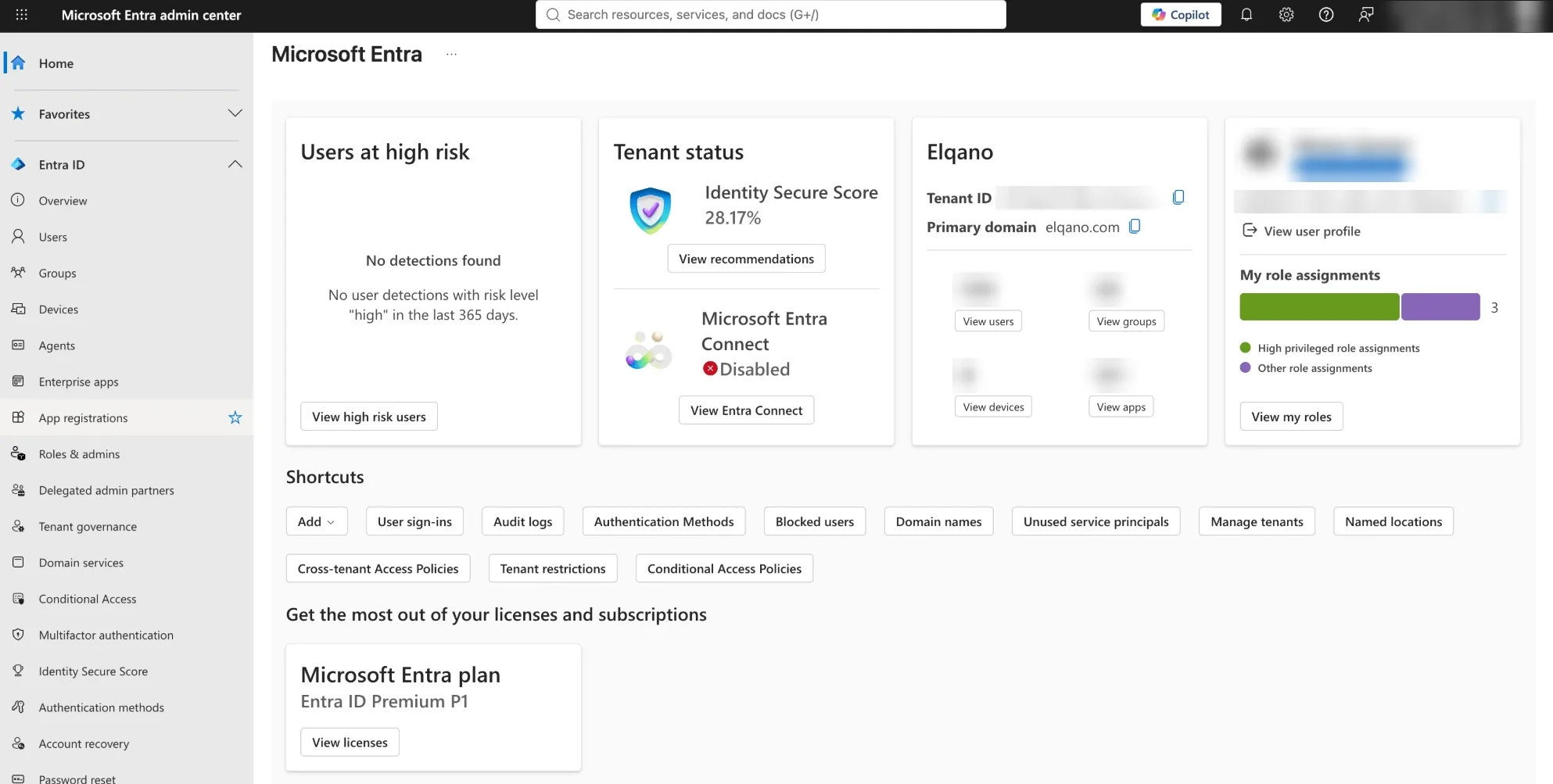
Go to the Microsoft Entra admin center. In the left menu, under Entra ID, click App registrations.
Select the Playground application
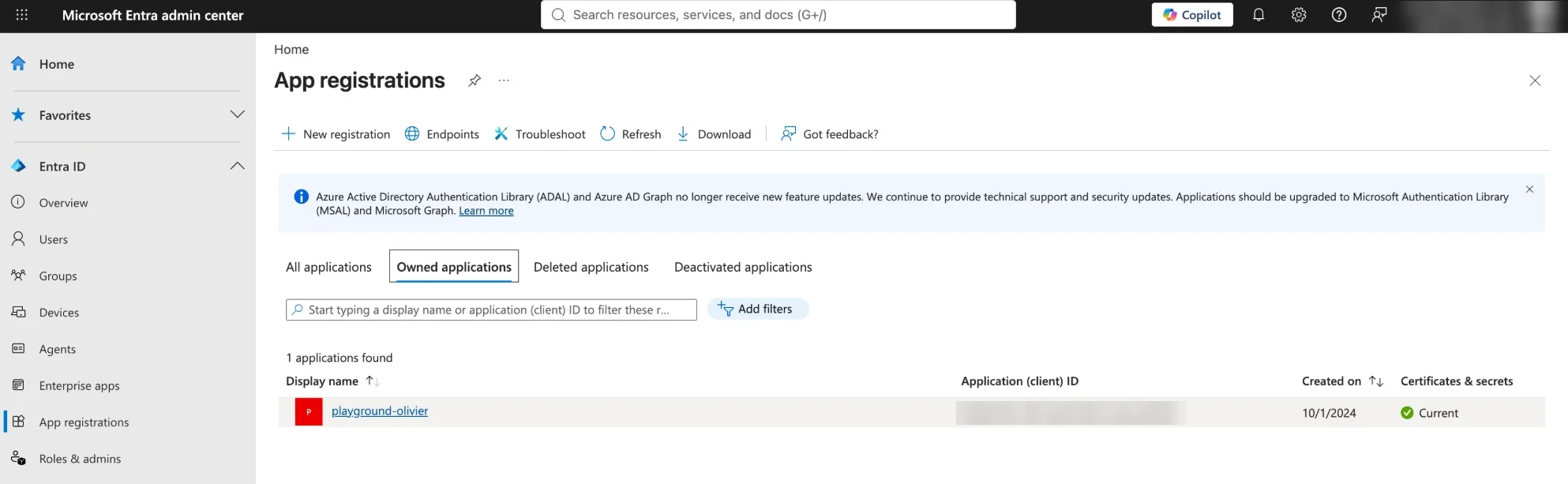
Select the application linked to Playground.
Tip
If the application is not listed under Owned applications, open the All applications tab. You can identify it by its Application (client) ID, which is the same as the Microsoft App ID shown in Playground settings.
Open Certificates & secrets
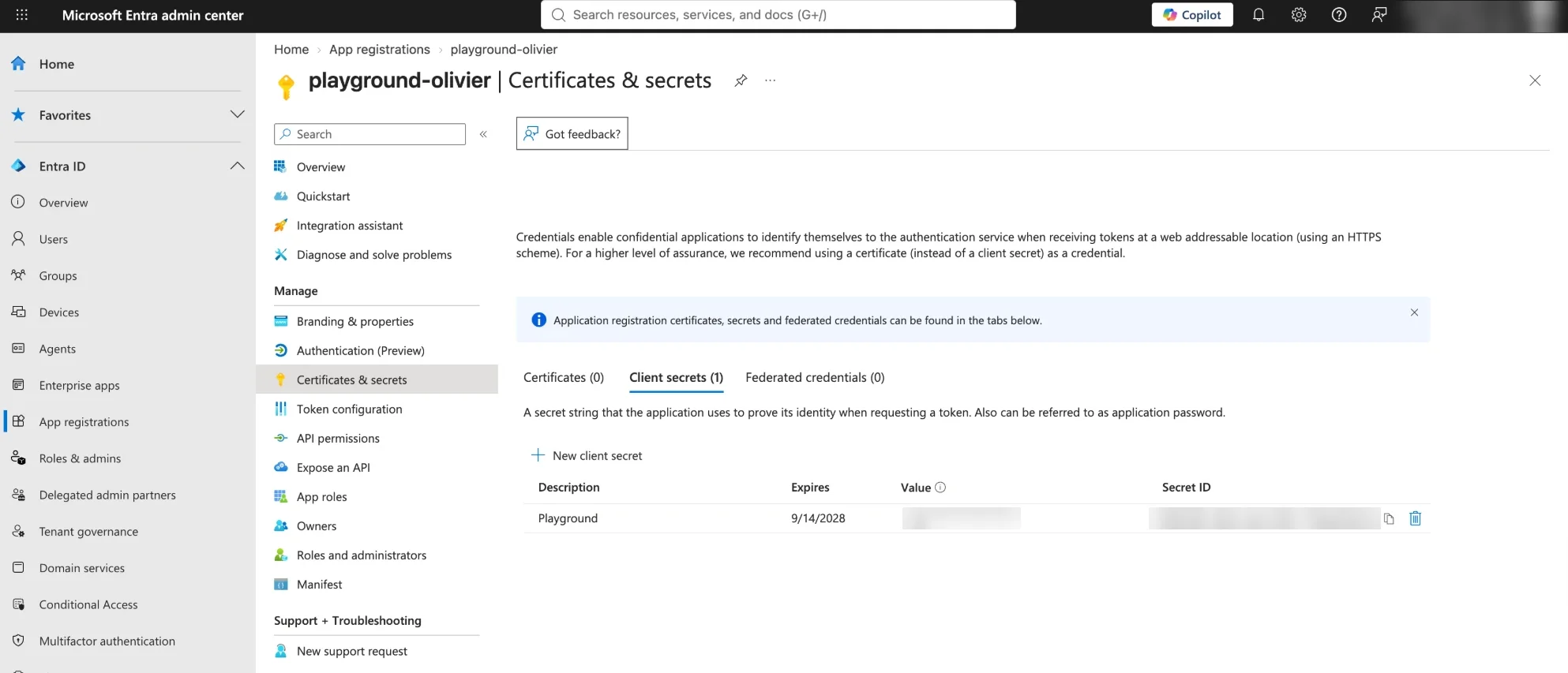
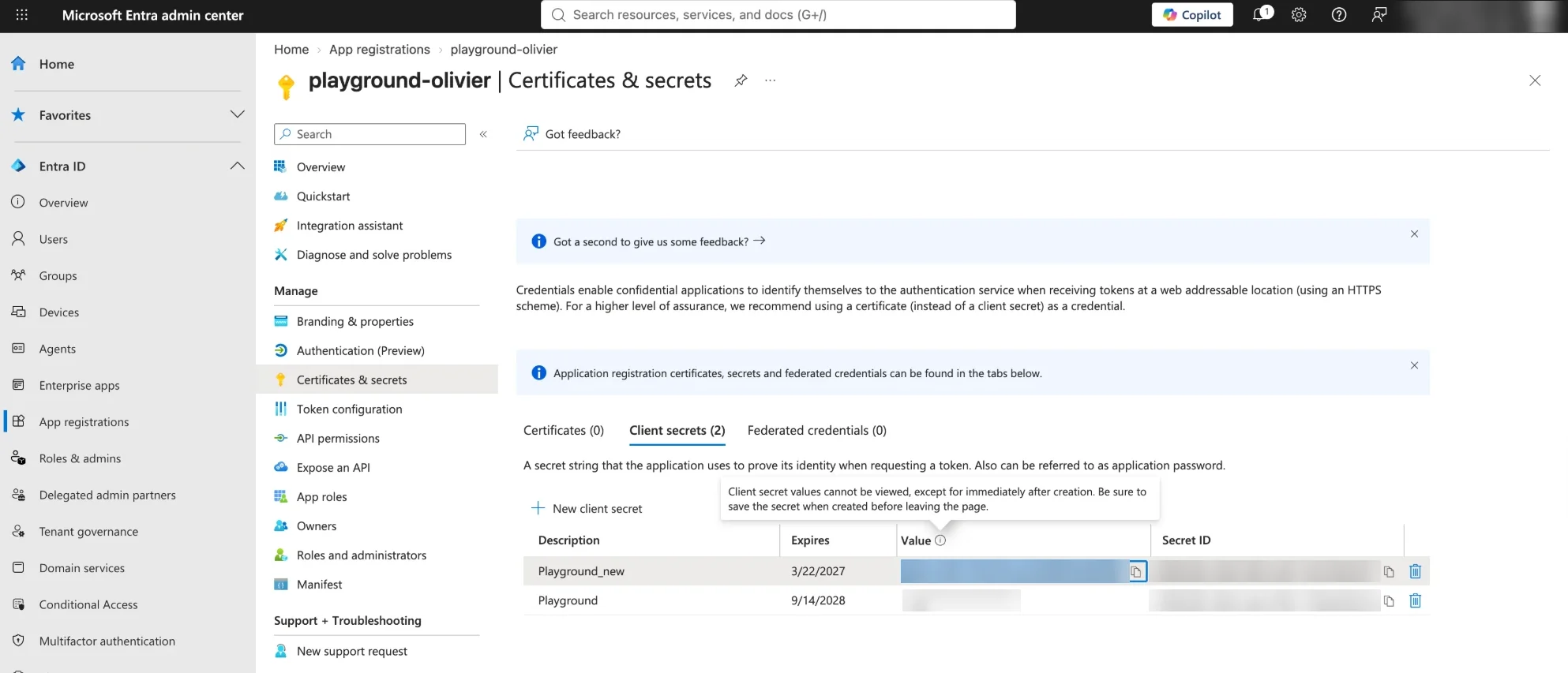
In the Manage section, click Certificates & secrets, then open the Client secrets tab.
Create a new client secret
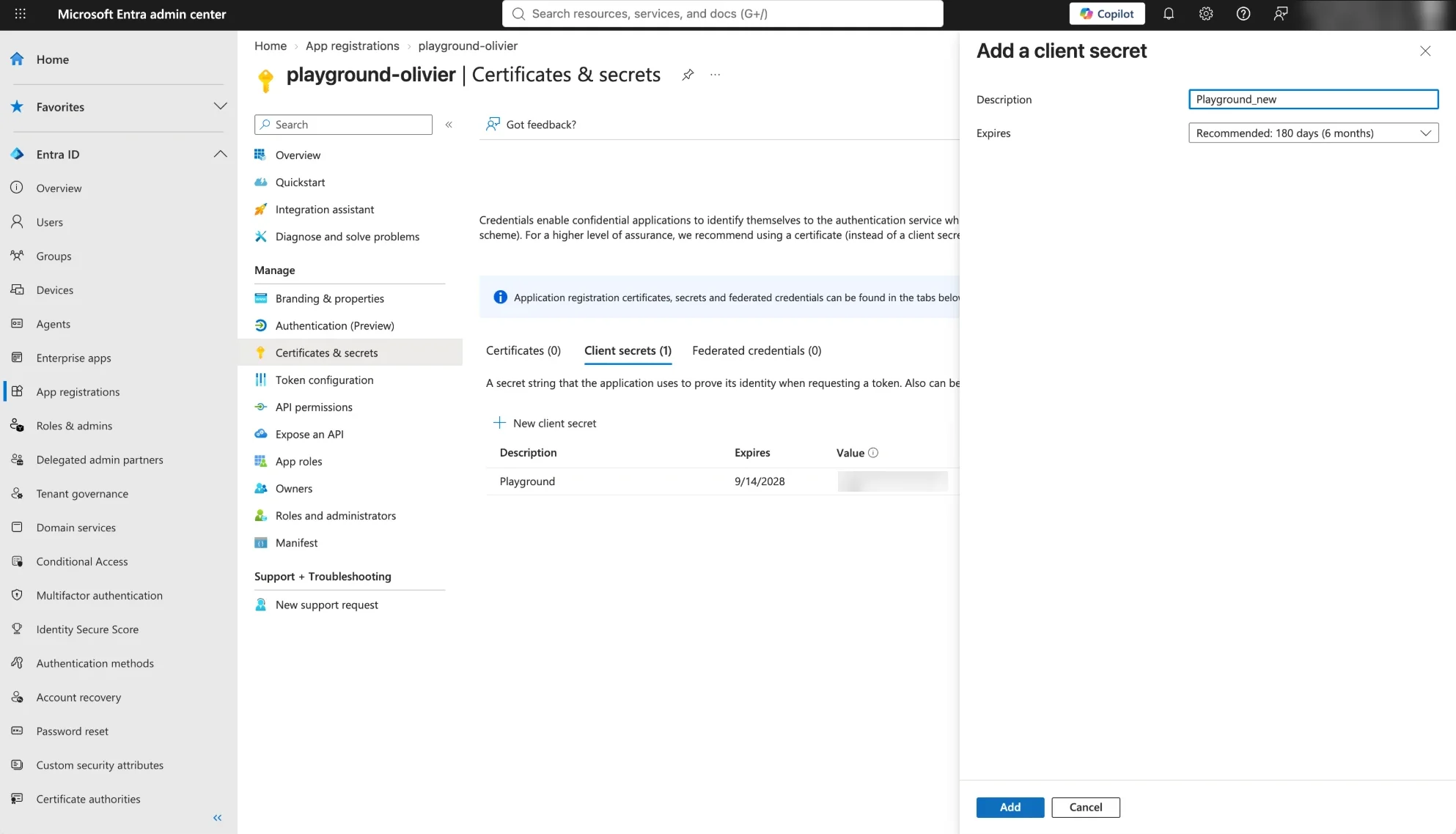
- Click New client secret
- Enter a Description (for example
Playground 2026) - Choose an expiration date. We recommend 730 days (24 months)
- Click Add
Copy the secret value
Click the copy icon next to the Value of the new secret and keep it at hand for the next part.
Warning
The secret value is displayed only once, right after its creation. If you leave the page before copying it, you will have to create a new secret.
Note
Copy the Value column, not the Secret ID. The Secret ID only identifies the secret in Entra and is not used by Playground.
Update the connection in Playground
Open the settings
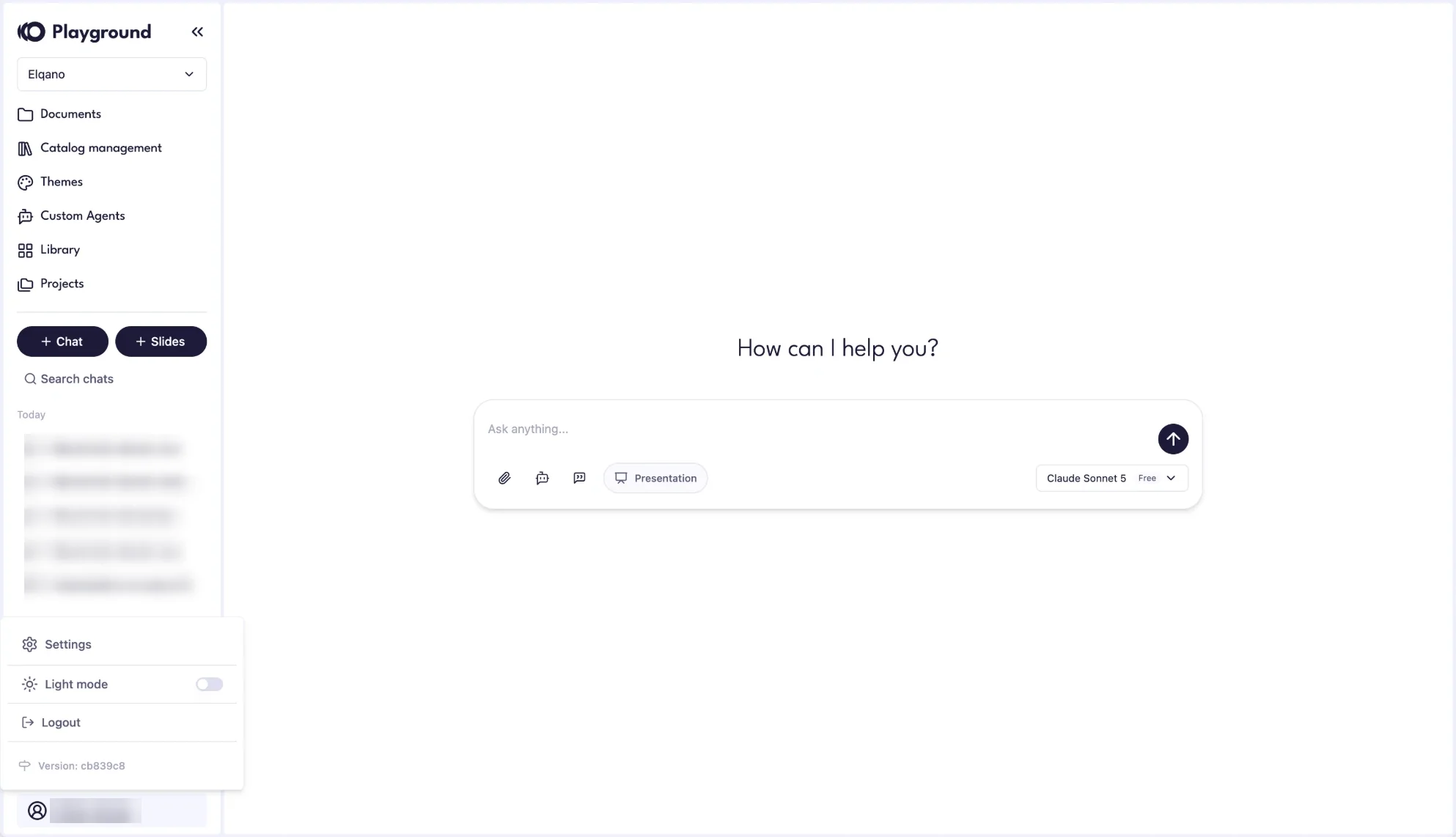
In Playground, click your name at the bottom left of the screen, then click Settings.
Update the Microsoft App registration
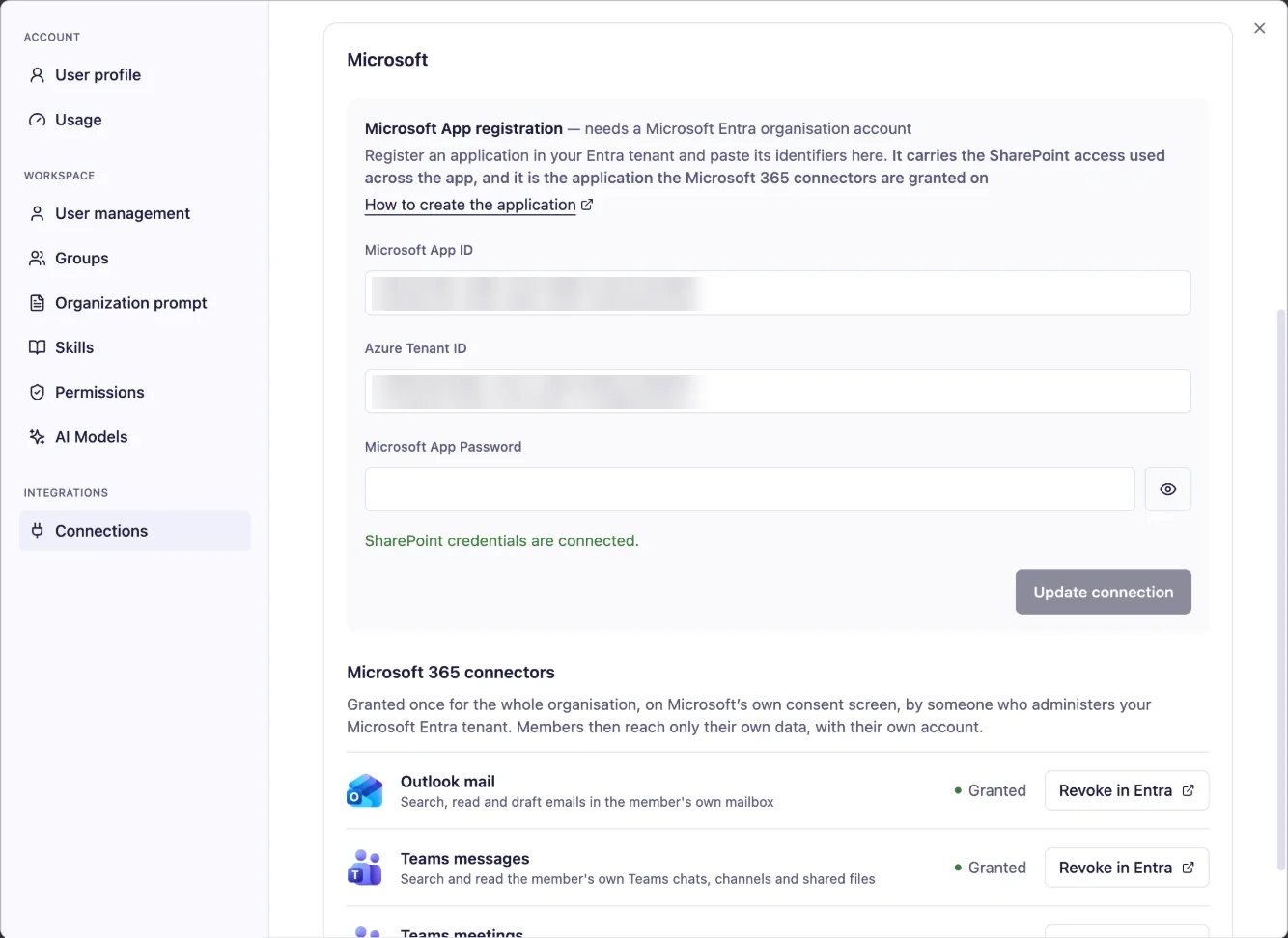
- Open the Connections tab
- In the Microsoft App registration section, check that Microsoft App ID contains the Application (client) ID of your application. It does not change when you renew a secret
- Paste the secret value in Microsoft App Password
- Click Update connection
The message SharePoint credentials are connected. confirms that the new secret is in use.
Tip
Once the connection works, you can delete the expired secret from the Client secrets tab in Entra.
Support
For any assistance or support needs, contact the Elqano Team